
To create AI product images for Shopify, start with a real photo of your product, generate a white-background main image and a few lifestyle scenes from it, resize to 2048 x 2048 px, then check every output against the real item before you upload. The AI uses your photo as a reference for shape and color. It does not just clean up your original pixels, so a quick review step matters every time.
That is the whole process. The rest of this guide walks through each step, the specs Shopify expects, and where AI images fit alongside your real product photos. For the bigger picture on using AI across your whole catalog, see our guide to AI product photography for ecommerce.
The Workflow: From Product Photo to Shopify-Ready Images
Every store, regardless of what it sells, follows roughly the same path from one product photo to a full set of Shopify listing images.
- Shoot or find one clean source photo. A phone photo works, as long as the product is well-lit and the whole item is visible. This photo is the reference the AI works from, so the clearer it is, the more accurate your results will be.
- Generate the white-background main image first. This is the shot shoppers see in search results and on your collection pages, so get it right before anything else.
- Generate two to four lifestyle scenes. A kitchen counter, a styled shelf, an outdoor setting, whatever fits your product. These become your secondary gallery images and social posts. If you are short on ideas, our product photography background ideas roundup has 20 you can generate this way.
- Resize and export to Shopify's spec. Square crop, correct pixel dimensions, and a web-friendly file format.
- Check each image against the real product before uploading. Compare color, proportions, logos, and any text or texture.
A single product can go from one photo to a full gallery in minutes this way, instead of a photoshoot per SKU.
Here is what this looks like in Slashlink. In the Studio, you pick a template or describe the shot you want, upload your product photo, and generate:
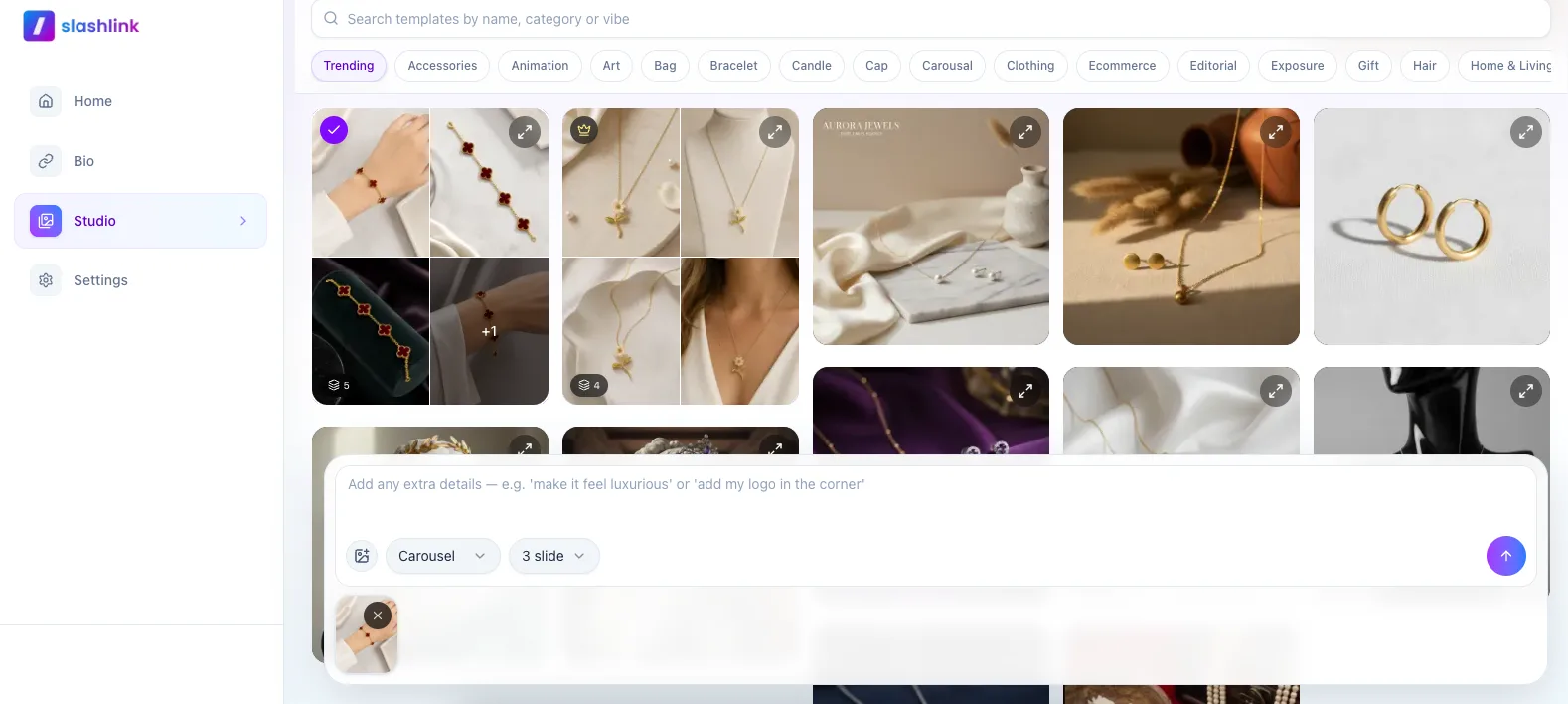
From a setup like that, you get finished product images ready to upload. Here are a few generated in Slashlink from a single photo:
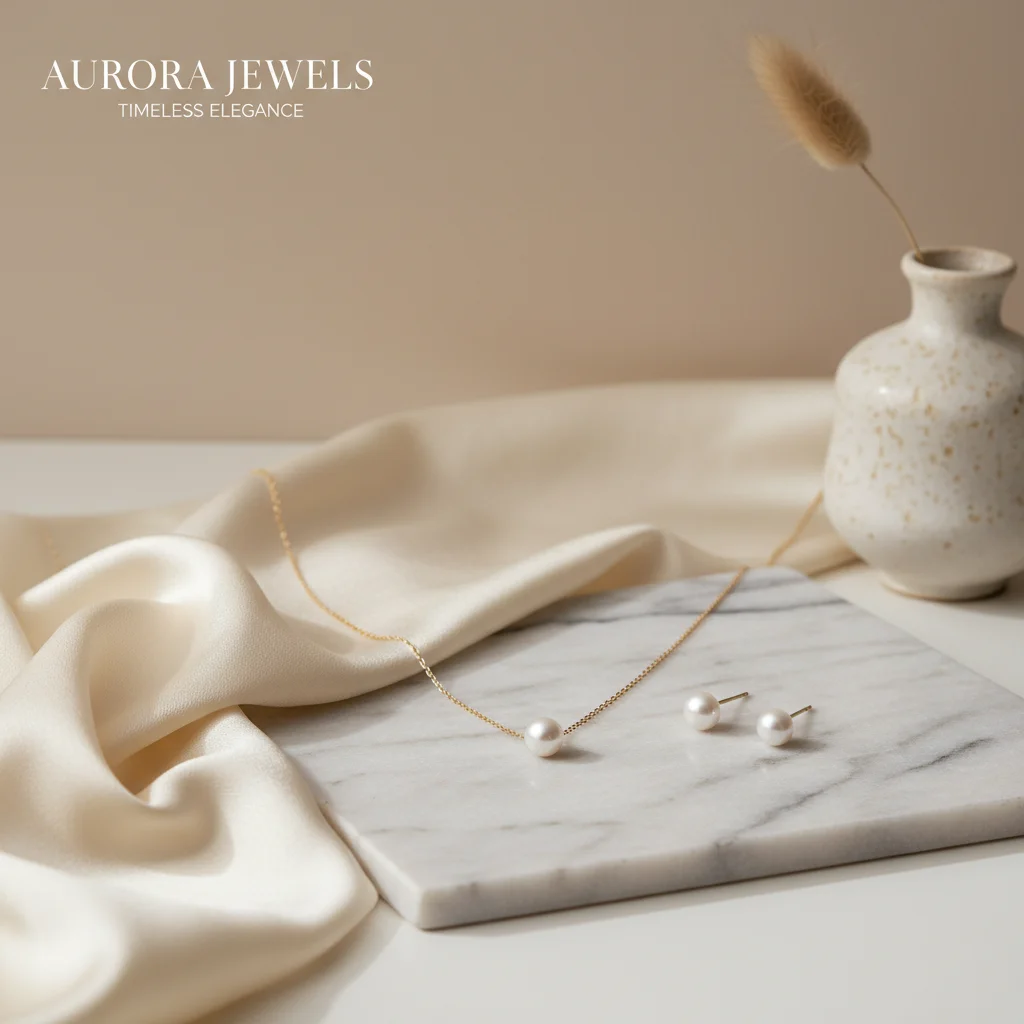
Example output: a jewelry product shot styled on marble, matching the kind of templates shown in the screenshot above.
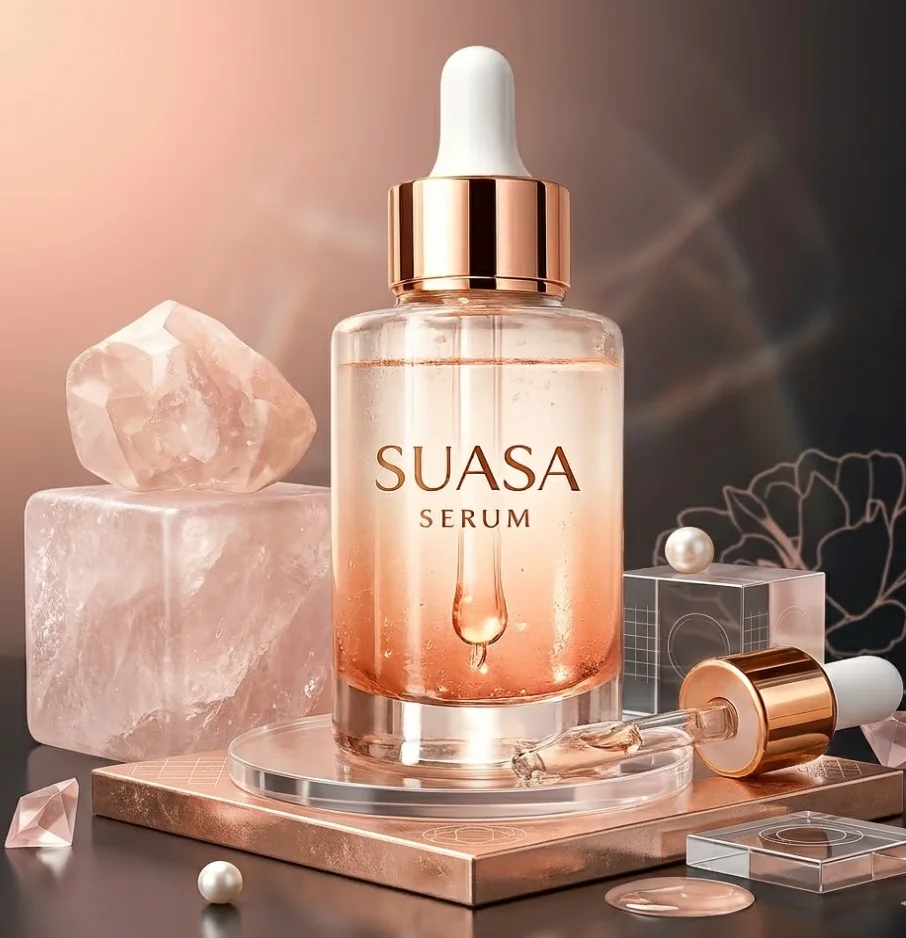
Example output: a studio-style product shot. The bottle stays the focus while clean lighting and props are added around it, which works well as a polished secondary image.

Example output: a lifestyle scene for the same kind of product, ready for a collection page or a seasonal social post.
Turn one product photo into a Shopify-ready image set
Upload a photo of your product and generate white-background main images and lifestyle scenes sized for your store, all built from your product photo as the reference. Check each result for detail drift before you publish.Meeting Shopify's Image Size and Format Rules
An AI tool can generate a beautiful image and still be wrong for your store if it does not match Shopify's specs. Shopify recommends product images at 2048 x 2048 px in a 1:1 square ratio, saved as WebP or JPEG. That single size looks sharp on retina screens, supports Shopify's zoom feature, and keeps page load fast.
A few points worth knowing before you export a batch of AI images:
- Crop square, not just any rectangle. A 1:1 ratio keeps your product grid looking consistent across the whole catalog.
- Prefer WebP over JPEG where your theme supports it. It is smaller at the same visual quality, which helps mobile load times.
- Keep file size well under the 20 MB hard limit. Aim closer to 200 to 300 KB per image after compression. Most AI image generators output larger files than that, so export or compress before uploading.
- Write real alt text, describing the product plainly, not just "product photo." This helps with image search regardless of whether the photo is AI-generated or not.
For the full spec sheet, including aspect ratio, alt text length, and mobile optimization, see our Shopify product image size guide.
Keeping Your Product Accurate in AI Images
This is the part sellers worry about most, and rightly so. An AI image generator works from your uploaded photo as a reference, not as a direct edit of your original pixels. It re-creates the scene around your product using that reference, which means small details can shift if you are not paying attention: a logo blurs, a stitch pattern changes, a color shade drifts warmer or cooler than the real item.
This is normal for how these models work, and it is manageable with one habit: check every generated image against your real product before you publish it. Look specifically at:
- Logos, labels, and any printed text
- Color accuracy, especially for products with a specific brand color
- Proportions and scale, particularly for small or oddly shaped items
- Texture and material, such as whether fabric, metal, or plastic reads correctly
If something is off, regenerate from a clearer source photo or adjust the prompt rather than publishing the flawed version. A shopper who receives a product that does not match the listing photo is the outcome every seller wants to avoid, and it is entirely preventable with a one-minute check. Our full breakdown of why AI product photos look fake covers the specific tells to watch for and how to fix them.
Free vs Paid Shopify Product Image Generators
If you searched for a free AI product image generator, you are not alone. Plenty of sellers want to test the idea before committing to a paid plan, and that is a reasonable place to start.
Free tools and free tiers are genuinely useful for a first pass: dropping a product onto a clean white background, trying one or two lifestyle scenes, or seeing whether AI images work for your product category at all. Our AI product background generator is free to start and covers exactly this, generating a new background around your product photo. Check the result for detail drift before you publish.
Where free tools tend to fall short for a real Shopify catalog:
- Volume. Free tiers usually cap how many images you can generate per day or month, which does not scale past a handful of SKUs.
- Consistency across a catalog. Keeping lighting and style consistent across dozens of products is harder with one-off free tools built for single images.
- Output size and format. Some free generators cap resolution below what Shopify recommends, so you end up upscaling, which loses sharpness.
- Batch and workflow features. Generating a main image plus several lifestyle variants per product, repeated across a catalog, is where a purpose-built tool saves real time over a general-purpose free generator.
A practical approach: use a free tool to validate the idea on one or two products, then move to a paid plan once you are generating images for your whole catalog on an ongoing basis.
Should the AI Image Be Your Shopify Main Image?
Unlike Amazon, Shopify does not run automated image compliance review on your listings, so there is no suppression risk for using an AI-generated main image the way there is on a marketplace. That said, the same accuracy principle still applies: your main image is the first thing a shopper compares against the product they receive, so it needs to be right.
A safe default many sellers use: if your AI-generated white-background image passes the fidelity check above and matches the real product exactly, it can serve as your main image. If you are unsure, or the product has fine details that matter (jewelry, printed patterns, exact color matching), keep a real photo as the main image and use AI for the lifestyle shots and secondary gallery images instead.
Our full breakdown of AI main listing images vs. lifestyle photos walks through this decision in more detail, including a table for which image slot fits which use case. It is written with Amazon and Etsy's stricter rules in mind, but the underlying logic applies to Shopify too: AI is safest for the images that sell the story, and a verified, accurate photo belongs in the slot that carries the most weight.
Generate your Shopify product image set in minutes
From one product photo to a white-background main image and lifestyle scenes, sized and ready to upload to your store.If you are building out imagery for a full storefront, our guide for ecommerce brands covers the workflow end to end, from product photos through to posts and captions.
Frequently Asked Questions
Can I use AI product images on Shopify?+
Yes. Shopify has no policy against AI-generated product images. There is no automated compliance review like Amazon runs on marketplace listings. The only real requirement is accuracy: the image should represent your actual product, and it should meet Shopify's recommended size and format specs.
What is the best free AI product image generator for Shopify?+
Free tools and free tiers work well for testing the idea on one or two products, especially for white-background shots. Our AI product background generator is free to start. For an ongoing catalog with many SKUs, a paid plan built for batch generation and consistent output usually saves more time than stitching together free tools.
Do AI product images hurt Shopify SEO or conversions?+
Not on their own. What affects SEO and conversions is image quality, file size, and accuracy, not whether the image is AI-generated. Compress images to Shopify's recommended size, write real alt text, and make sure the product in the photo matches what you sell. Skipping the fidelity check is what causes conversion problems, not the AI itself.
What size should my AI-generated Shopify images be?+
Shopify recommends 2048 x 2048 px in a 1:1 square ratio, saved as WebP or JPEG, ideally under 200 to 300 KB after compression. Most AI image tools output at a different size, so plan to resize or export at spec rather than uploading directly.
Will the AI change details on my product by accident?+
It can. The AI generates from your photo as a reference rather than editing the original pixels directly, so small details like logos, color, or proportions can drift. Always compare the generated image against your real product before publishing, and regenerate from a clearer source photo if anything looks off.
Should I use AI for my Shopify main image or just secondary photos?+
If the AI image passes a close accuracy check against your real product, it can work as your main image, since Shopify does not review this the way Amazon does. If your product has fine details that are easy to get wrong, such as jewelry or printed patterns, keep a real photo as the main image and use AI for lifestyle and secondary shots instead.